Connect your myenergi Zappi to Wattlas
Find your myenergi API key under Products → your gateway device → Advanced. You will also need the hub and Zappi serial numbers. Follow the connection steps below.
- Your Zappi charger Records charging energy
- Your myenergi account Stores the readings
-
 Wattlas
Brings energy data and tariff prices together
What does a Zappi connection add?
- Charging history
- See when you charged and how much energy your charger delivered.
- Electricity rates
- Add your tariff to see the rates that applied. Where supported, Wattlas applies smart-charging rates and booked free-electricity sessions to the relevant periods. Some sessions need to be added manually.
- Home energy use
- Add compatible equipment to see charging beside solar and battery use.
Wattlas separates car and home energy use in kWh. Grid import costs cover the whole home for each tariff period; they are not a separate EV bill. View a charging day in Wattlas.
Comparing running costs before buying an EV? Compare electric, petrol and diesel costs.
What you'll need
Connecting this account requires Wattlas Plus.
- A myenergi account at myaccount.myenergi.com, with your Zappi already added
- Your hub serial (doubles as your API username) and your Zappi's own serial, on its sticker or in the myenergi app
- About 2 minutes - myenergi only shows the key once, so keep the tab open
Find your myenergi API key and connect
-
Get an API key from myenergi
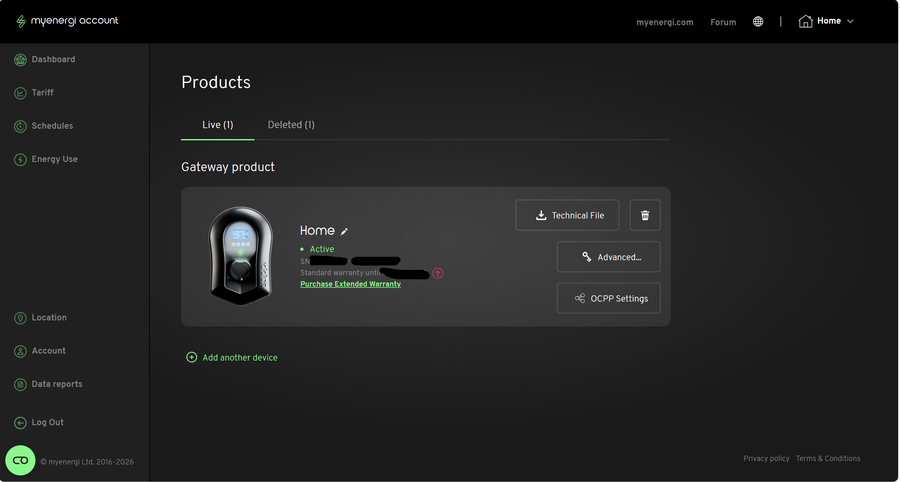
Sign in at myaccount.myenergi.com using the account that registered the devices. Open Products, find your gateway/hub product card and click Advanced.... Select Generate new API key, confirm and copy the key to a private place. It is only displayed once.
Generating a new key cancels the previous one. If another service uses your existing key, it will need updating too. If Advanced is missing, check that you are using the original registering account, not a shared account. See myenergi's API-key instructions.
 Enlarge screenshot ↗
Your gateway's product card - click "Advanced..." 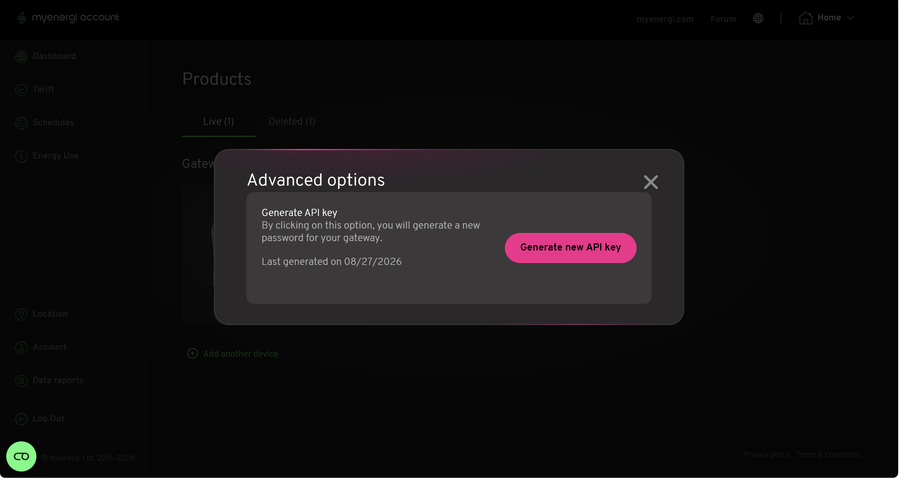 Enlarge screenshot ↗
The Advanced options panel - click "Generate new API key" Screenshots from myenergi's own account portal, 13 September 2026 - myenergi can change this layout at any time.
-
Open Setup → Car charger in Wattlas
Tap the gear icon top-left of the app, then the car icon for the Car charger tab, and pick
myenergi Zappifrom the dropdown. -
Enter your Zappi's details
Enter the hub serial, API key and Zappi serial in the fields below.
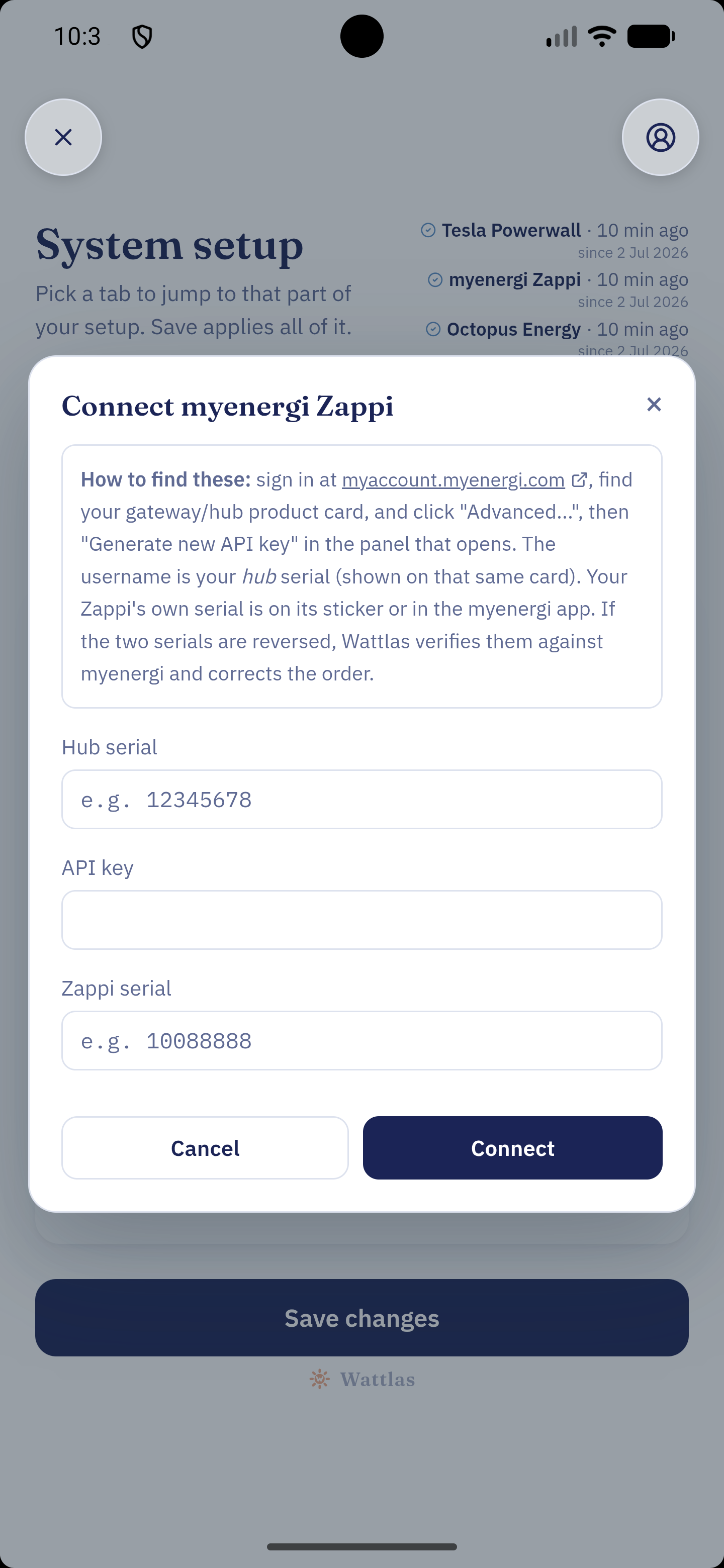
Wattlas System setup, captured 30 September 2026. Fields are empty; the serial numbers shown are placeholders. Select to enlarge. -
Connect, then save your setup
Select Connect in the dialog shown above. Once connected, select Save changes on the System setup screen. In the setup wizard, select Test connection, then Save once the check succeeds. If the hub and Zappi serials are reversed, Wattlas verifies them with myenergi and corrects the order before saving. If the test fails, check the API key and that the charger belongs to this hub.
-
Set your charger's position
Choose how your charger is connected and metered. Wattlas uses this to allocate charging to the grid, solar or battery in its energy view. Check with your installer if you are unsure.
Compare the two charger positions
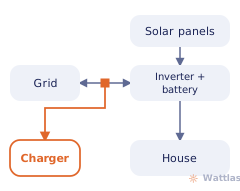
Grid-side metering: Wattlas treats the charger as drawing from the grid. 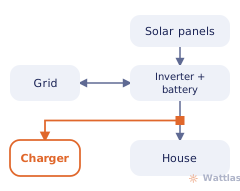
Home-circuit metering: Wattlas can allocate charging to solar, battery and grid energy.
Common questions
A Zappi and your tariff are enough to see charging alongside electricity rates. View EV charging monitoring, with or without solar.
Can Wattlas turn my Zappi on or off, or change its charging mode?
No. Wattlas reads your Zappi charging history. It does not send start or stop commands, change charging modes or alter schedules. Use the myenergi app for Eco, Eco+ and Fast modes and charging controls.
Does it matter whether my Zappi is wired before or after my battery?
Yes, for how the car's kWh gets split between solar/battery and grid - not for whether the connection itself works. Setup asks one question about where your charger is wired and gets the attribution right either way.
Other integrations
Start monitoring your home energy.
Solar, battery, car charging and energy tariff costs, all in Wattlas.