Connect your Easee charger to Wattlas
Use your Easee account and charger ID to bring charging history into Wattlas. Add your tariff to see the electricity rates alongside it; solar is optional.
- Your Easee charger Records charging energy
- Your Easee account Stores the readings
-
 Wattlas
Brings energy data and tariff prices together
What does a Easee connection add?
- Charging history
- See when you charged and how much energy your charger delivered.
- Electricity rates
- Add your tariff to see the rates that applied. Where supported, Wattlas applies smart-charging rates and booked free-electricity sessions to the relevant periods. Some sessions need to be added manually.
- Home energy use
- Add compatible equipment to see charging beside solar and battery use.
Wattlas separates car and home energy use in kWh. Grid import costs cover the whole home for each tariff period; they are not a separate EV bill. View a charging day in Wattlas.
Comparing running costs before buying an EV? Compare electric, petrol and diesel costs.
What you'll need
Connecting this account requires Wattlas Plus.
- Your Easee account email and password - the same login as the Easee app
- Optional: your charger ID for manual entry, from the Easee app or charger sticker
- Your Easee login is enough to find your chargers
Connect it in Wattlas
-
Have your Easee login ready
Use the same email and password as the Easee app. Manual charger ID entry is optional. If you need it, open the Easee serial number guide. In the Easee app, open Charger settings and read the serial number on the About line. Use that full serial number as the charger ID in Wattlas. Easee Control also lists serial numbers under Products.
-
Open Setup → Car charger in Wattlas
Tap the gear icon top-left of the app, then the car icon for the Car charger tab, and pick
Easeefrom the dropdown. -
Enter your Easee login
Leave the charger ID blank to find chargers after sign-in. Wattlas selects a single charger automatically. If the account has several, choose by name and ID. You can also enter an ID manually.
Connect Easee
How this works: sign in with the same email and password you use for the Easee app. Leave the charger ID blank to find your chargers, or enter an ID manually.Easee account email
Easee developer docsyou@example.comPassword••••••••••••Charger ID (optional)leave blank to find your chargersConnect -
Connect and choose your charger
Select Connect. Wattlas checks the account before saving and asks you to choose if several chargers are listed. In the setup wizard, select Test connection, choose a charger if prompted, test it and select Save.
-
Set your charger's position
Choose how your charger is connected and metered. Wattlas uses this to allocate charging to the grid, solar or battery in its energy view. Check with your installer if you are unsure.
Compare the two charger positions
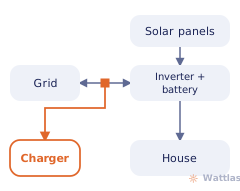
Grid-side metering: Wattlas treats the charger as drawing from the grid. 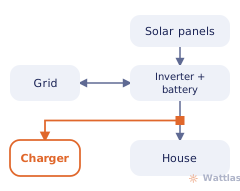
Home-circuit metering: Wattlas can allocate charging to solar, battery and grid energy.
Common questions
An Easee charger and your tariff are enough to see charging alongside electricity rates. See what Wattlas shows; solar is not required.
Where do I find my Easee charger ID?
In the Easee app, open Charger settings and read the serial number on the About line. Use that full serial number as the charger ID in Wattlas. Easee Control also lists serial numbers under Products. The prefix varies by model; for example, Charge Lite serials begin with EHL.
Can Wattlas control my Easee charger?
No. Wattlas only ever reads from your Easee account through their developer API - it can't change a schedule, start or stop a session, or touch any setting. That stays in the Easee app.
Other integrations
Start monitoring your home energy.
Solar, battery, car charging and energy tariff costs, all in Wattlas.